Promotions and Coupons for Odoo

Last Updated: December 29th, 2021
Promotions and Coupons
There are two types of discounts that are supported in Odoo: Promotions and Coupons. They behave in slightly different ways and can be used for various purposes. You can enable this functionality for both by navigating to the Sales module > Configuration > Settings and checking the “Coupons & Promotions” box, as shown in the image below.

Once enabled, you can access both from the Products menu of the Sales App.
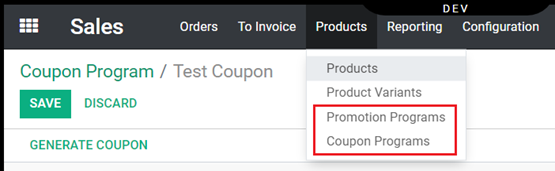
Promotions
When creating a new promotion, several key settings should be taken into consideration.
Click “Create” from the list of promotions to get started and give your promotion a name. You can set up a promotion to apply to everyone who visits your site or calls in, or you can limit usage to specific groups, users, or even specific price lists via the Edit Domain button. Once all of your filter criteria are entered, the records will display the number of users eligible for the promotion. You can view the list of users by clicking on the Records link, but if you need to modify the filtering logic, you’ll need to use the Edit Domain button again.

The promotion can apply to all active products on your site, or you can limit it to specific groups of products or even a single product. You can also require that multiple quantities of a product be added to the cart or that a minimum dollar amount be met to qualify for the promotion.
NOTE: At this time, only the default currency is supported for meeting the minimum dollar amount requirement, so if you have two sites that span currencies, a dollar discount will be converted at the current rate. I.E., if your default currency is Canadian dollars and you offer $5CAD off, on the US site it will be ~$3.50 off.

You can control how the discount code is displayed in the shopping cart by modifying the discount’s “Product Name”. Since all discounts are considered service products, they’re easily customizable. From the Promotion window, click the “Reward Line Product” link to be taken to the relevant product page, where you can make the necessary changes.

A promotion can be configured to be applied automatically to a cart once the conditions are met, in which case no code is required. You can also set up the promotion to require the user to enter a code, in which case you will need to specify the code name. This field will not be case-sensitive, and any text the user enters will be automatically capitalized.

You can limit promotion usage to a single order per user, allow them to use it a preset number of times, or configure it for infinite usage. You can also specify start and end dates for which the promotion is valid.

Currently, we only support the Current Order option for promotions.

A promotion can be set up as a discount or as a free product. Unfortunately, at the time of this article, the built-in functionality in Odoo for Free Shipping does not work as expected for most implementations.

Promotion: Discount
A promotion can be set up for a fixed dollar amount; in this case, it’s essential to ensure that the minimum purchase amount is properly configured above to prevent possible orders where the customer receives the entire content of their cart for free.

A promotion can also be set up for a percentage discount on either the entire order, the cheapest item in the cart, or on a specific product. You can configure a maximum threshold to cap the possible discount to a dollar amount or leave this as 0 to create a discount with no limit.

Promotion: Free Product
If you want to offer a free product as your promotion, you can select a product from a list and specify how many of that product are being given away.

You can offer a free product with the purchase of another product, BOGO, or buy X-number of products and get Y free.
A user can only enter a single promotion code in the shopping cart; however, if their order qualifies for an Automatically Applied promotion as well, the two will be stacked. If a customer enters a different code in the cart, the previous one will be removed and the new one will be applied in its place, with appropriate messaging letting the user know exactly what has occurred.
Coupons
Unlike promotions, coupons are stackable, meaning more than one can be used in a single shopping cart. A user can also add coupons on top of an automatic promotion and a promotional code; therefore, it’s essential to be aware of active promotions when generating coupons.
Coupons in Odoo are treated as one-time-use vouchers, and several can be generated for each coupon program.
Creating a Coupon Program
You can create a coupon that applies to any product, or limit it to a single category, brand, or a specific product.
You can configure it to apply to a single item or require that a purchase meet a minimum quantity for a product to be valid. You can also specify a minimum dollar amount for the order or leave it at $0 if you so choose.
Note: just like with the promotions, only the default currency is currently supported when considering the minimum dollar setting.

Validity allows you to configure the number of days that a coupon voucher will be valid from the date of creation. You can leave this set to 0 if it’s meant to never expire, though setting a specific end date is usually a good idea.

Similarly to promotions, you can configure your coupon to be redeemed for a Discount or a Free Product. Free shipping is currently not functioning as intended, but it can be configured using the Free Product setting.

If you choose to offer a discount with the coupon, you can select either a Percentage or a Fixed Amount.
Percentage setting can be configured to discount the order, the cheapest product, or a specific product, along with a configurable maximum amount that can limit the total discount, if needed.

If you choose the ‘Fixed Amount’ option, the only setting required is the amount of the discount you want. Similar to a promotion, consider adjusting your Minimum Purchase setting for the coupon when setting this amount to avoid orders with a $0 balance.

If you select ‘Free Product’, you’ll receive a single entry to configure the product you’d like to offer for free. Just like under promotions, you can select a shipping method if you’d like to set up a coupon for free shipping.

Once your coupon program is configured, you can create the actual coupons by clicking on the “Generate Coupon” button at the top.

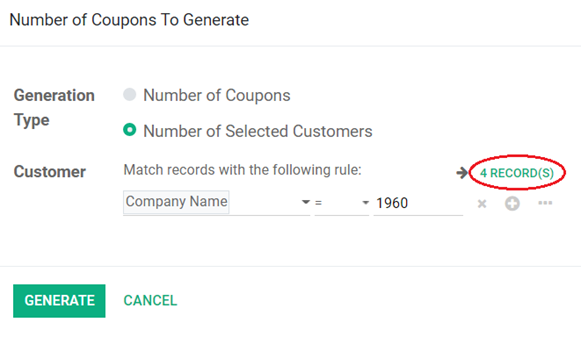
When generating coupons, you can create a specific number to share manually or generate coupons for a particular customer or company.

If you choose a company, it will generate a coupon for each contact within that company, unless you further limit your criteria.

In the following example, ‘Company 1960’ has four active contacts and therefore four separate coupons will be generated, one for each. There is currently no email template available to send these coupons to their respective users. If you choose this option, you will need to share the codes manually.
You can view all the coupons currently created for a given coupon program by going to the Coupons tab at the top.

Here you can see the coupons we created in the above example, along with any additional coupons currently active for this program. If a coupon has been used, you’ll see an updated state and the Order Reference for the Sales Order in which it was used.

The state of a coupon program, along with any sales numbers associated with the coupons within the program, will be shown on the other two tabs from the Coupon page. There, you can close an active coupon program or view all the orders that have been placed with the generated coupons.
Note: If you close a coupon program, any coupons generated within it will become inactive, even if their expiration date hasn’t passed yet.
Real World Example
The following is a sample configuration for a promotion that offers all customers 10% off their order when they enter the code TESTPROMO, provided the cart contains a minimum of $100 in pre-tax items.

On the website itself, once one or more items have been added and the user views the shopping cart, they’ll see an “ADD A COUPON” button. Once clicked, a window will pop up to allow the user to enter the code.

If the cart contents meet the promotional criteria, once the code is entered, the cart will reflect the discount and will list the promotional code used as an item in the cart.

If the promotional criteria are not met, an error message will be displayed immediately in the pop-up window.

Shopping Cart Behavior
- As mentioned previously, you cannot combine promotions with codes, though an automatically applied promotion can be stacked with one that requires a code.
- If a coupon or a promotion is configured for a particular user or company, the user will be required to log into their account to use it. If they are not logged in, they’ll be prompted to do so.
- If a user attempts to use the same promotion that’s already applied to the cart, a message will appear to inform them that the code has already been applied.
- If a promotion is a one-time use and has already been used on a previous order, a message will pop up to inform the user, and it will not be applied.
- If a coupon is currently applied to a cart or order, it cannot be used by a different user or in a different session; however, if it’s removed from the cart, it automatically becomes available for use elsewhere.
- If a promotion or a coupon has expired, the user will be notified, and it will not be applied.
- In cases where a promotion or a coupon gift the customer with a free product, but the product hasn’t been added to the cart yet, the item will be automatically added once the code is applied.
- If a promotion or a coupon is for a gift with a specific purchase of a particular item, and the items are not yet in the cart, adding the code will add both items with the proper code applied. If more than one product qualifies for the free gift, since we cannot make the selection for the customer, an error will be displayed stating that the applicable item is not yet in the cart.
- It is important to keep all active promotions and coupons in mind when creating new ones. A customer cannot check out if their shopping cart total is $0 or less, so you will need to configure all promotions to prevent this possibility.
Related posts

Product Cores for Automotive Sellers in Odoo
Efficient Automotive Product Core Management in Odoo: Track Core Eligibility, Banked Cores, Core Balances, Core Adjustments, and so much more!

User Restricted Access for Product Moves
Discover Steersman's exclusive "Quality Director" customization, enabling designated users to handle transfers from the quality hold location.

Apply Partial Credits Memos to Invoices and Bills
Another steersman payment enhancement that makes payment reconciliation and credit management easier.

Quickly Create Products On-The-Fly
Steersman Odoo provides businesses the ability quickly create products on-the-fly in sales orders while preventing product misconfiguration and giving the business a way to track and report on these special product's stock levels and value in the warehouse.