Simple Pricelist Setup and Pricing Strategy

There are several different ways to configure a pricing strategy available in Steersman’s Odoo implementation. The simplest option allows you to set a single price for each product in your catalog. However, if you would like to implement a more strategic pricing strategy and gain more control, you can take advantage of the simple pricelist option.
Simple Pricelist Strategy
If managing product prices at the individual product level doesn’t seem manageable for your operation or you’d like to offer different prices to different types of clients, a simple price list strategy might be a good option for you. This option allows you to assign multiple prices for each product directly at the product level and then group them via one or more simple pricelists.
Here, the pricelists act as buckets to help you organize your various pricing strategies and assign specific pricelists to specific customer accounts. No additional calculations are supported at the pricelist level with this option. If you’d like to implement a complicated formula to calculate prices on the fly, please refer to the Calculated Pricelists Strategy.
Multiple Prices per Product
To enable this option, select the Sales application from the main dashboard, find the Configuration option in the menu at the top, and select Settings from the dropdown:

Once the settings page is loaded, scroll down to the Pricing section and check the Multiple Sales Prices per Product box. The Multiple prices per product option will be the first option enabled. Once it has been selected and saved, a clickable Pricelists link will appear at the bottom, which will take you directly to the Pricelists view, where a Public Pricelist will be created for you by default.

A Pricing section will now appear under the Sales tab for each of your products. Here you’ll be able to enter a variety of prices for that product, taking the minimum purchased quantity and an applicable date range into account.
When adding prices in this view, you can select the pricelist in which you’d like each setting to be stored. You can configure volume discounts by specifying different prices with corresponding minimum quantity values, or schedule price changes using the Start Date/End Date fields.
Volume Discount and Scheduled Price Increase Example
In the following example, I’ve configured several possible prices for our test product, all of which are listed in the Public Pricelist. We have established two different thresholds for volume discounts and scheduled a pricing increase for all three pricing levels to take effect automatically on September 1, 2021. A customer placing an order before the scheduled increase would be charged $20 per item for quantities below 15, $15 per item for quantities between 15 and 99, and $5 per item for quantities of 100 or more. All orders placed on or after September 1, 2021, would be $22, $17, and $10, respectively.
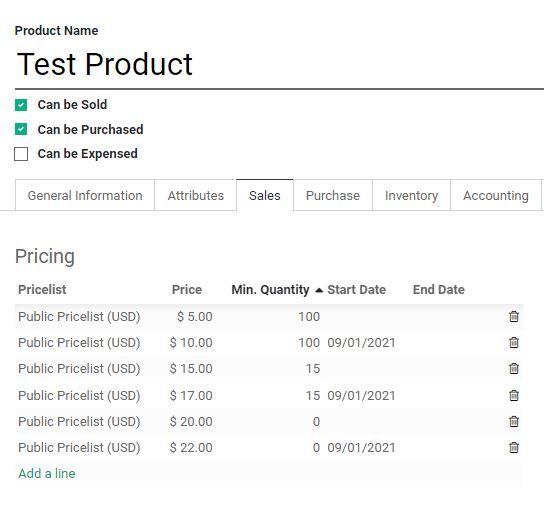
NOTE: the minimum quantity field is considered before the date range when determining the correct price, so you’ll need to keep that in mind during setup.
Creating Simple Pricelists
You can create a new pricelist directly from this view by selecting Add a line while in Edit mode. A pop-up window will appear, allowing you to specify the name for your new pricelist, along with a fallback pricelist for use on the website.

If a customer with this new pricelist assigned to them wants to purchase an item for which you haven’t provided a price specific to this pricelist, this will allow the system to pull the price from the fallback list instead. This fallback only applies to website sales, as you don’t have a salesperson available to make adjustments at the time of purchase. If a salesperson is entering an order for a customer and there is no price set for the pricelist and the selected quantity, the Sales Price from the General Information tab on the product will be used instead. The salesperson will then have the option to make any necessary adjustments.
In the example below, I’ve created a pricelist for my wholesale customers, and I’ve specified the public pricelist as a website fallback:

Multiple Simple Pricelists for One Product Example
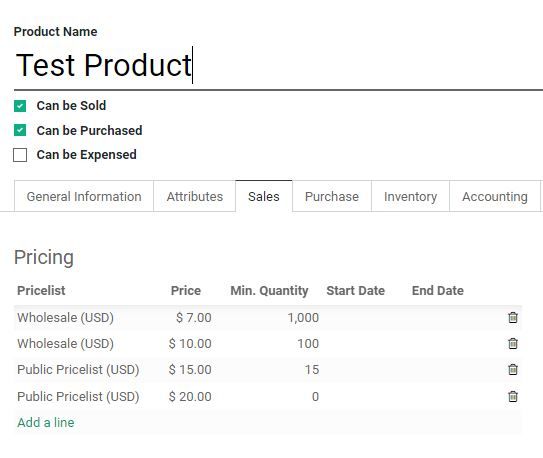
Now that I have two pricelists created, I can go back to my product and set up the prices for each option. In the following example, a regular customer will pay $20 for this test product if ordering less than 15 items or $15 if ordering 15 or more. A customer with access to the Wholesale pricelist will pay $10 when ordering 100-999 items and $7 for 1,000 items or more. I haven’t specified a price in my Wholesale pricelist for quantities below 100 because I assume that my wholesale customers will always order more. My Sales Team will have the ability to make pricing adjustments or select the Public pricelist in rare instances when only a few items need to be ordered. Finally, my fallback setting will handle pricing if a wholesale customer wants to order just a few items on the website.
If you’d like to learn more about setting up promotions or coupons, take a look at Odoo’s Coupons and Promotions article. While a pricelist will allow you to manage the prices your customers will pay, running a promotion or offering coupons will give you better tracking and insight into how each of these marketing strategies performs in terms of attracting sales.
Related posts

Choosing a pricing strategy for your operation in Odoo
Learn the various pricing strategies available in Steersman's Odoo for use by sales and on ecommerce websites

Calculated Pricelists Setup and Pricing Strategy
Gain full control over pricing by creating calculated pricelists for global use or apply them to categories, products or product variants.

Pricing Strategies and Caveats for Online and Offline Sales
When considering pricing structures for your business, one option does not fit all. Pricing is a complex subject and pricing methods can be subjective.

How to Assign a Pricelist to a Customer in Odoo
Instructions for how to assign a pricelist to a customer account in Odoo.