Choosing a pricing strategy for your operation in Odoo

There are numerous pricing strategies you can implement for your business. Your setup may require a single price for each product, or you may want to set up a variety of pricelists tailored to each type of customer your business attracts. Steersman’s Odoo supports all these pricing strategies reliably and intuitively, both for Sales and ecommerce websites. This article will cover the single-price model, the multiple-price model, and the multiple-calculated-price model.
Single Price Strategy
The single price strategy is the simplest of the three pricing setups and is configured as the default implementation in Odoo. In this model, you can manage a single price per product, which is set on the Product view. In the background, a single pricelist is called Public, which contains all prices and is assigned to all customers. However, any necessary adjustments are made at the product level.

To view or edit product prices, you can access the Product view via the PIM, Sales, or Inventory apps.
PIM App – This app opens directly to the Products view; alternatively, you can access it via the Products > Products option in the top menu if you’ve switched to a different view.
Sales App – To view the product list from the Sales app, select Products > Products from the menu at the top.
Inventory App – To view the product list from the Inventory app, select Master Data > Products from the menu at the top.
You can still run a variety of pricing promotions and issue coupons, but all of these will be based on this one base price set on the product level.
Simple Pricelist Strategy
The second available option is to assign multiple prices for each product, with the ability to group them via one or more simple pricelists. Here, the pricelists act as buckets to help you organize your various pricing strategies and assign specific pricelists to specific customer accounts. No additional calculations are supported on the pricelist level with this option.
To enable this option, select the Sales application from the main dashboard, locate the Configuration option in the menu at the top, and then select Settings from the dropdown menu. Scroll down to the Pricing section and check the Multiple Sales Prices per Product box. The Multiple prices per product will be the first option enabled:

Once the selection is saved, a Pricing section will appear under the Sales tab for each of your products. Here you’ll be able to enter a variety of prices for that product, taking the minimum purchased quantity and an applicable date range into account.
Volume Discounts and Scheduled Price Changes
The following example has several possible prices for our test product, keeping them all in the Public Pricelist:
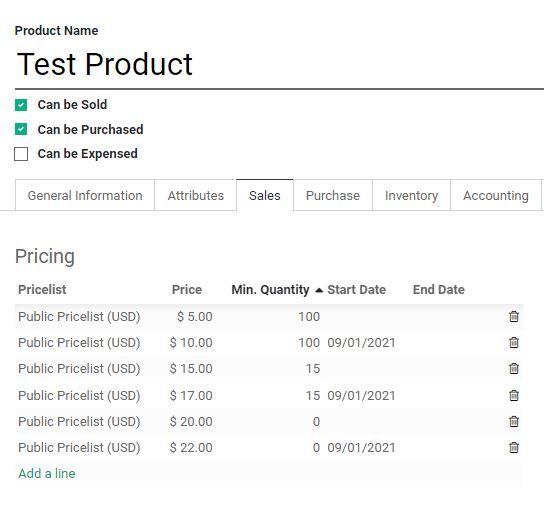
We have established two distinct volume thresholds for discounts, as well as a scheduled pricing increase that will take effect automatically on September 1, 2021. You won’t need to remember to manually “flip the switch” at midnight, as you would with the single-price model. Given these rules, the price for the Test Product would show as follows:
- $20/item when quantity ordered is less than 15 and order date is before 9/1/2021
- $22/item when quantity ordered is less than 15 and order date is after 9/1/2021
- $15/item when quantity ordered is between 15 and 100 and order date is before 9/1/2021
- $17/item when quantity ordered is between 15 and 100 and order date is after 9/1/2021
- $5/item when quantity ordered is 100 or more and order date is before 9/1/2021
- $10/item when quantity ordered is 100 or more and order date is after 9/1/2021
While web orders will follow these pricing rules as configured, a salesperson taking a customer order over the phone or via email can override these prices if needed.
Separate Wholesale Pricelist
If you would like to offer a different pricing structure for just some of your customers, you have the option to create a separate pricelist. For example, if you would like to offer wholesale pricing to customers who regularly place bulk orders, this pricing strategy enables you to do so.
The following example has two pricelists for our test product, with some volume-based thresholds:
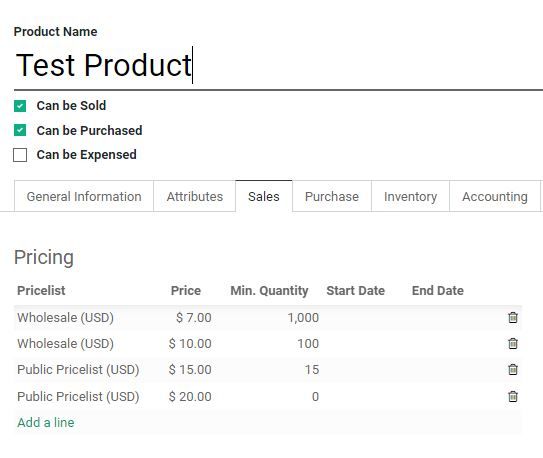
Given these rules, the price for the test product would show as follows:
- $20/item for regular customers when the quantity ordered is less than 15
- $15/item for regular customers when the quantity ordered is 15 or more
- $10/item when quantity ordered is between 100 and 1000, and the customer has the Wholesale pricelist assigned to their account
- $7/item when quantity ordered is 1000 or more and the customer has the Wholesale pricelist assigned to their account
There is no specified price in the Wholesale pricelist for quantities below 100, based on the assumption that wholesale customers usually order more. In rare instances, when only a few items need to be ordered, the sales team will have the ability to make pricing adjustments or select the Public pricelist.
Fallback pricelists
When creating new pricelists, one of the things that Steersman’s Odoo lets you configure is a default pricelist for use on the website. If the pricelist assigned to a specific customer doesn’t cover a particular product they’re looking to purchase, the system will pull the price from the default pricelist instead. You’ll want to ensure that your default pricelist covers all of your products to avoid issues.
In the example above, the Public Pricelist is set as the website default to the Wholesale pricelist to ensure that wholesale customers can place low-volume orders on the website without help from a salesperson:

For more information on how to enable and configure simple pricelists, please refer to Simple Pricelist Setup and Pricing Strategy.
Calculated Pricelists Strategy
If you prefer to automate price calculations instead of manually entering individual prices and rules at the product level, the Prices Computed From Formulas option in Sales > Configuration > Settings enables you to do so.
Once you’ve selected the Prices Computed From Formulas option in settings, you can click on the Pricelists link just below the selection to start creating and editing your pricelists. You can also access the pricelists at any point from the Products menu in the Sales app or the Pricing menu in the Steersman’s PIM app. This option provides you with more control over various pricing structures, making it a bit more complicated. However, depending on your business needs, the initial setup time may be worthwhile in the long run.

By default, the Pricelists view contains a Public Pricelist for each of your enabled currencies, which includes all prices specified at the product level for all items in your catalog. You can keep these lists and use them as a base for other pricelists, or you can replace them entirely with different pricelists that better suit your purposes.

For example, let’s say you would like to offer wholesale prices to some of your customers for select, more popular items. Instead of specifying the wholesale prices and rules for each product in your catalog, you can create a single pricelist that offers 40% off the public price for a category of eligible products and assign it to only the customers you want to have this option available to.
Create a New Calculated Pricelist
You can create a list that sets all the products in a certain category to the same value, make another list that discounts public prices by 40%, or create complicated pricing formulas that generate prices on the fly. To start, simply click the Create button at the top left of the Pricelist view and enter a name for your new pricelist.

As you can see in the screenshot above, there is a wide range of customizations that you can enable for each pricelist.
- Show Pricelist in Products - Enabling this option will add a tab to the Product view that will display all the pricelists and the resulting product price for that specific product
- Currency - Allows you to specify the currency that this pricelist will apply to
- Country Groups - Allows you to limit the pricelist to a particular group of countries
- Pricelist Items - Allows you to specify the group of products that the pricelist will apply to, as well as configure all the calculations and rules for this particular pricelist
- Website Fallback Pricelists - Lets you specify a default pricelist for use on the website, the same way as was done for Simple Pricelists described above.
Using these criteria, you can create your pricelist as general or as specific as needed and apply either simple discounts or complex formulas to achieve the desired behavior.
Add a New Pricelist Item
A pricelist item is where the calculations for the pricelist are managed. Here you can specify the products that a given calculation will be applied to, any rules you’d like to configure, and the actual calculations you’d like to implement.
For example, the following pricelist item will apply a 10% discount for any item in the catalog that’s ordered in a quantity of 100 items or more:

This can be combined with other criteria to build up a comprehensive set of rules and manage the price for every item in your catalog. This section illustrates an example of a pricelist with three different pricelist items:

The first pricelist item listed applies a 50% discount, with a min/max margin, to a specific “Special Product” and is set up as follows:

The second item ensures that products that are in a “No Wholesale” category do not get any discounts applied to them:

And the third is the 10% off volume orders, mentioned earlier. A customer assigned to this particular pricelist will be shown prices for each product they view in accordance with the following three rules.
Website Fallback Pricelists
If you have ecommerce enabled, the Website Fallback Pricelists option will appear at the bottom of the Pricelist screen, just as in the simple pricelist model mentioned above. Same as before, this will ensure that if a pricelist you have assigned to a particular customer does not cover the product the customer is looking to purchase, the price will be pulled from the fallback pricelist instead.
In the example referenced above, there are two websites operated: one for the US market and another for the Canadian market. If one of the US clients to whom this Wholesale USD pricelist is assigned goes to the Canadian website to place an order, none of the rules in their assigned pricelist will be valid. To ensure that they can place an order without any issues, the Wholesale CAD pricelist will be used to generate prices for that customer instead.
If you would like to learn more about the various possible calculations, take a look at the Calculated Pricelists Setup and Pricing Strategy article.
Assign Pricelists to Customer Accounts
To ensure that your customers see the prices you’ve set up for them, you will need to assign a relevant pricelist to the parent client account, which can be accessed via the CRM, Sales, or Contacts apps. For instructions on how to do this, take a look at our How to Assign a Pricelist to a Customer in Odoo article.
Assigning Pricelists to Websites
Steersman’s ecommerce supports the use of the same pricelists you have configured for use on the website(s) as well. Once you have created and configured your pricelists, you will need to assign them to your website(s). If you have more than one website, for example, one for the US market and another for Canada, you may want to list different pricelists for each.
The following is a sample setup for a US-based website with a Public Pricelist set as default and with a few Wholesale discounted pricelists enabled:

For more examples and instructions, take a look at our Configuring Pricelists for Steersman’s Odoo ecommerce article.
Publish all changes
Once all of your pricelists are configured and added to relevant clients and websites, you will need to rebuild the website product index by publishing all the changes you’ve made. Don’t forget this step, as the changes will not appear on the ecommerce side until this is done.
Jobber Pricelist for Auto Parts
You might have a situation where you have a separate pricelist for your catalog that is not derived from the public price in any way. For example, the Auto Parts supply industry commonly utilizes a Jobber price. This price usually falls somewhere between the MSRP and the wholesale distributor price, and generally varies depending on the vendor relationship with the business.
Since a Jobber price is not typically related to the Public or MSRP price in any way, it will need to be set for each product within this new pricelist. Once set up, you can use your stored Jobber Pricelist to generate a variety of other calculated pricelists, as needed, using the steps described above.
Final Notes
Regardless of the pricing strategy you select, once the configurations are complete, the correct price will automatically populate when an item is added to a Sales Order. On the ecommerce side, your customers will need to ensure they’re logged in to see the prices intended for them; otherwise, the default/public price will be displayed instead.
You can make pricing adjustments at any time and always maintain complete control over who gets charged what and when.
Related posts

Simple Pricelist Setup and Pricing Strategy
Implement a more strategic pricing strategy and get more control over your product catalog with simple pricelists.

Calculated Pricelists Setup and Pricing Strategy
Gain full control over pricing by creating calculated pricelists for global use or apply them to categories, products or product variants.

How to Assign a Pricelist to a Customer in Odoo
Instructions for how to assign a pricelist to a customer account in Odoo.

Pricing Strategies and Caveats for Online and Offline Sales
When considering pricing structures for your business, one option does not fit all. Pricing is a complex subject and pricing methods can be subjective.